😎Day 46: Setting Up AWS EC2 and S3 Using Terraform

👋 Hi, I'm Ritesh Dolare, a DevOps enthusiast dedicated to mastering the art of DevOps.
🎉 On Day 46 of our DevOps journey, we're diving into Terraform! Today, we'll learn how to provision an EC2 instance and an S3 bucket on AWS. 🚀 By the end, you'll be skilled in automating these crucial resources. Let’s get started! 🌟
Prerequisites
✅Installing Terraform
Create an EC2 server:


Terraform is an open-source infrastructure as code software tool that provides a consistent CLI workflow to manage hundreds of cloud services. You need to install Terraform to provision and manage AWS resources.
Steps to Install Terraform on Ubuntu:
Go to the Terraform Official document https://developer.hashicorp.com/terraform/install?product_intent=terraform

Download Terraform For Linux:
 wget -O- https://apt.releases.hashicorp.com/gpg | sudo gpg --dearmor -o /usr/share/keyrings/hashicorp-archive-keyring.gpg
 echo "deb [signed-by=/usr/share/keyrings/hashicorp-archive-keyring.gpg] https://apt.releases.hashicorp.com $(lsb_release -cs) main" | sudo tee /etc/apt/sources.list.d/hashicorp.list
 sudo apt update && sudo apt install terraform
Paste the Command to EC2 server:

Verify the installation:
terraform -version
✅AWS CLI
The AWS Command Line Interface (AWS CLI) is a unified tool that enables you to manage your AWS services from the command line. It allows you to automate tasks and manage multiple AWS services efficiently.
Download the AWS CLI Installer:
Go to the official AWS CLI Website.
Download the AWS CLI for LINUX Ubuntu users.
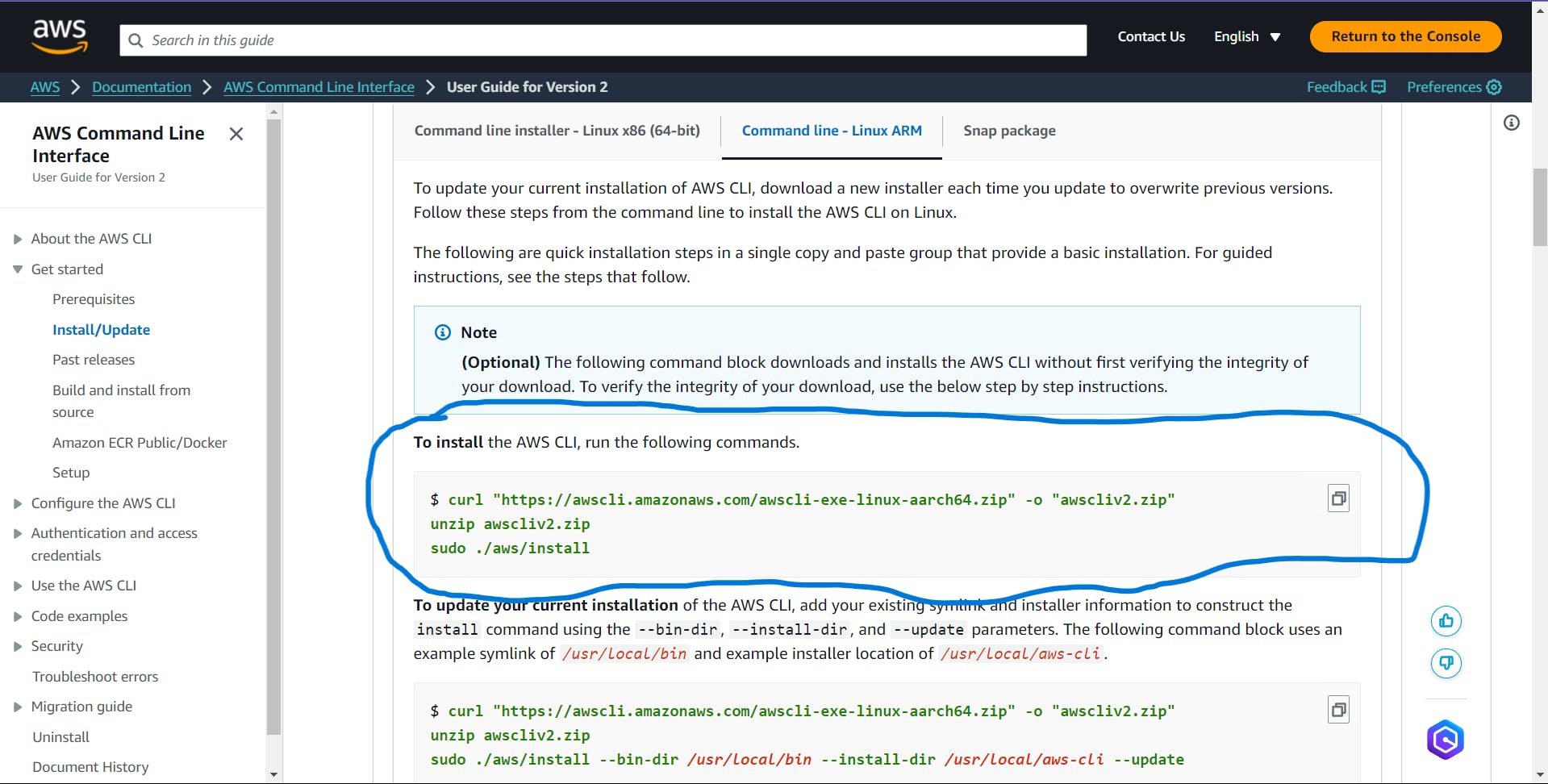
Run the following commands:
curl "https://awscli.amazonaws.com/awscli-exe-linux-x86_64.zip" -o "awscliv2.zip"Unzip the Installer:
- Install
unzipif it's not already installed:
- Install
    sudo apt update
    sudo apt install unzip
- Unzip the downloaded file:
unzip awscliv2.zip
Run the Installer:
- Run the install script:
sudo ./aws/install
Verify the Installation:
- Check the AWS CLI version:
aws --version
Configure AWS CLI:
- In your terminal, type:
aws configure
- Enter the Access Key ID and Secret Access Key when prompted. Also, enter your preferred region (e.g.,
us-east-1) and output format (e.g.,json).


✅AWS IAM User
AWS Identity and Access Management (IAM) allows you to securely control access to AWS resources. You'll need an IAM user with appropriate permissions to connect your AWS account to Terraform.
Steps to Create and Configure IAM User:
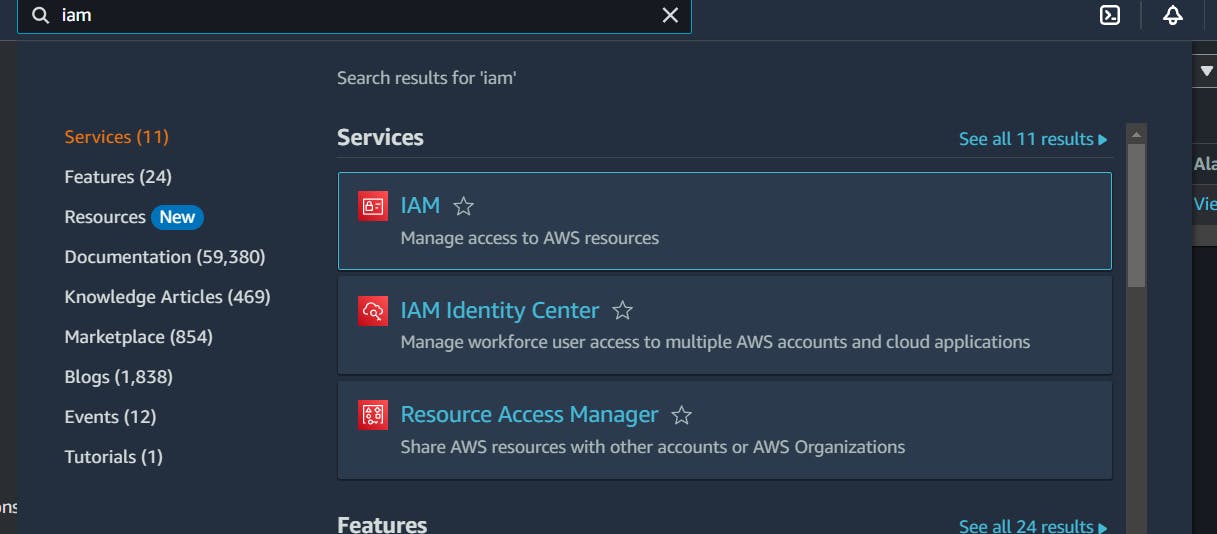
Create an IAM user with suitable permissions.

Generate Access Keys (Access Key ID and Secret Access Key) for the IAM user.

Export the keys to your environment to allow Terraform to authenticate with AWS:

✅Install Required Providers
Terraform uses providers to interact with cloud platforms and other services. The AWS provider is necessary to manage AWS resources.

Terraform Configuration:
Define the required providers and specify the AWS provider version in your
main.tffile:terraform { required_providers { aws = { source = "hashicorp/aws" version = "5.64.0" } } }Specify the AWS region where you want to provision resources:
provider "aws" { region = "us-west-2" }
✅Task 01: Creating an AWS EC2 Instance using Terraform
Now, let’s walk through provisioning an AWS EC2 instance using Terraform.
Add the following Terraform configuration to your main.tf file to create an EC2 Instance:
 terraform {
   required_providers {
     aws = {
       source = "hashicorp/aws"
       version = "5.64.0"
     }
   }
 }
 provider "aws" {
   region = "us-west-2"
 }
resource "aws_instance" "aws_ec2_test" {
count = 4
ami = "ami-05134c8ef96964280"
instance_type = "t2.micro"
tags = {
Name = "TerraformTestServerInstance"
}
}

Step 1: Initialize Terraform
To set up Terraform in your environment and download the required providers:
terraform init

Step 2: Review the Terraform Plan
Before applying the changes, it’s a good practice to review what Terraform will do. This step helps ensure that the configurations are correct.
terraform plan

Step 3: Apply the Terraform Configuration
Now, apply the Terraform configuration to provision the EC2 instances:
terraform apply

This will create the specified number of EC2 instances in the provided AWS region.
Step 4: Verify in AWS Console
After running terraform apply, you can verify that the EC2 instances have been created by logging into your AWS Management Console.

✅Task 02: Creating an AWS S3 Bucket using Terraform
Next, let's create an AWS S3 bucket using Terraform. S3 is an object storage service that offers industry-leading scalability, data availability, security, and performance.


Step 1: Define the S3 Bucket Resource
Add the following Terraform configuration to your main.tf file to create an S3 bucket:
resource "random_string" "bucket_suffix" {
  length  = 8
  special = false
  upper   = false
}

resource "aws_s3_bucket" "example" {
  bucket = "my-tf-test-bucket-${random_string.bucket_suffix.result}"

  tags = {
    Name        = "My bucket"
    Environment = "Dev"
  }
}

Explanation:
The
random_stringresource is used to generate a unique suffix for the S3 bucket name, ensuring that it is globally unique.The
aws_s3_bucketresource creates the S3 bucket, with thebucketname including the unique suffix.Tags are added to the bucket for easier identification.
Step 2: Apply the Terraform Configuration
Run the following commands to create the S3 bucket:
Initialize Terraform:
terraform init
Review the Plan:
terraform plan
Apply the Configuration:
terraform apply

Step 3: Verify the S3 Bucket in AWS Console
After applying the configuration, verify that the S3 bucket has been created by checking your AWS Management Console under the S3 service.

Conclusion:
🚀 Wrapping up Day 46, you've successfully learned how to create AWS EC2 instances and S3 buckets using Terraform. This skill is a crucial step in automating cloud infrastructure, making your DevOps journey more efficient and scalable. Keep experimenting with Terraform, and soon, you'll be managing complex cloud environments with ease. 🌟
Keep up the great work, and let's continue this exciting journey together! 💪


